

Today I built an iOS Shortcut that lets me share any screenshot to my own API, which generates iPhone mockups and saves them to cloud storage. Here’s how to wire up iOS Shortcuts to your own backend.
The Goal
Share a screenshot from my iPhone → Shortcut processes it → API generates a mockup → Result saved to Photos.
The API Side
First, you need an endpoint that accepts base64-encoded images. I used a Vercel serverless function:
// api/mockup.js
export default async function handler(req, res) {
  const { image } = req.body || {}

  if (!image) {
    return res.status(400).json({ error: 'Missing image' })
  }

  // Decode base64
  const imageBuffer = Buffer.from(image, 'base64')

  // Process the image...
  const result = await processImage(imageBuffer)

  // Return the result
  res.setHeader('Content-Type', 'image/png')
  res.send(result)
}
Key insight: iOS Shortcuts sends JSON bodies just fine, but the image needs to be base64-encoded first.
The Shortcut
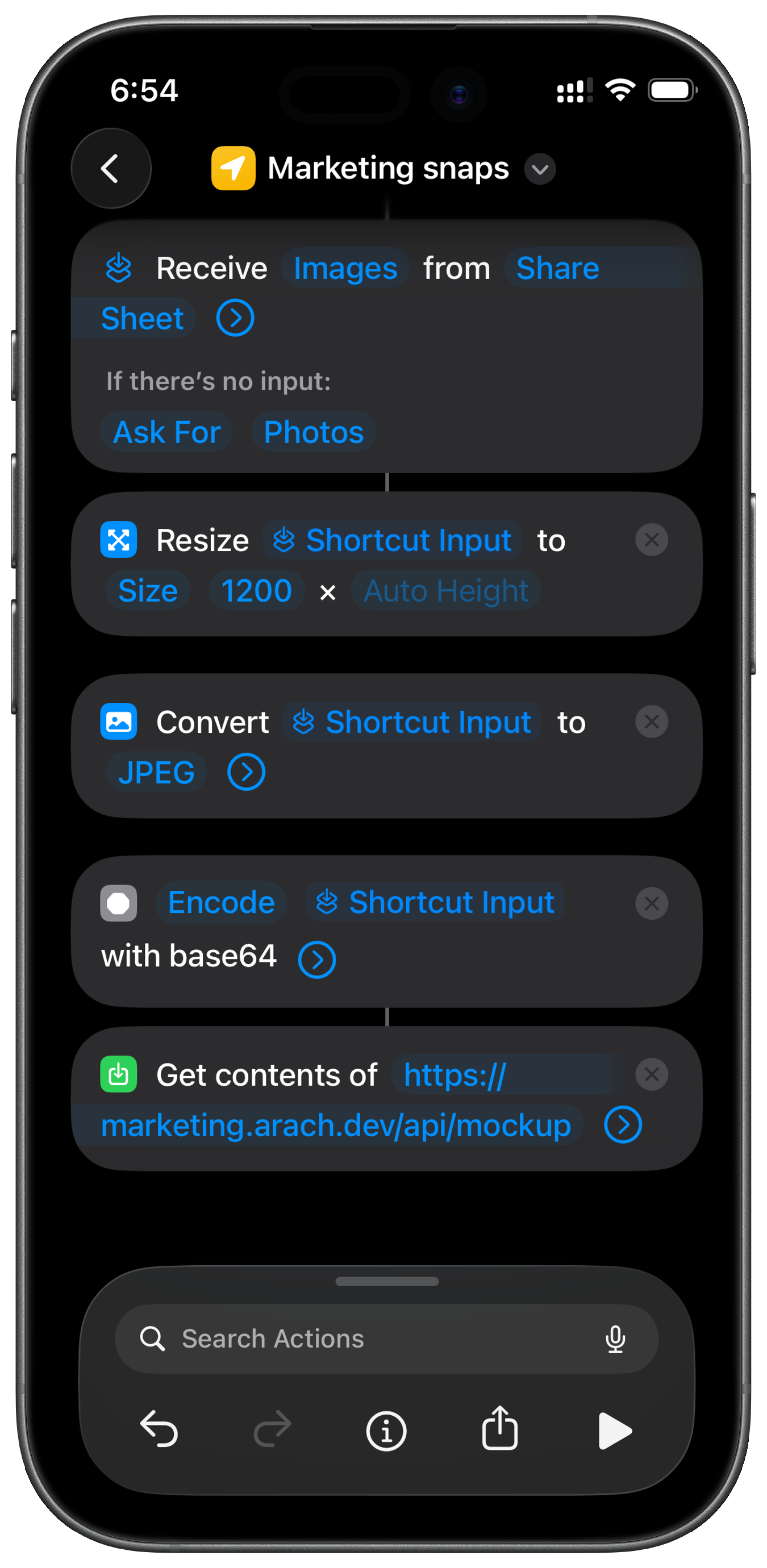
Here’s the flow:
- Receive input - The shortcut automatically receives whatever is shared to it
- Resize Image to 1200px width - Keeps the payload under Vercel’s 4.5MB limit
- Convert Image to JPEG at 80% quality - Further reduces size
- Base64 Encode - Required for JSON transport
- Get Contents of URL - POST to your API with JSON body
- Save to Photo Album - Store the result
Setting Up “Get Contents of URL”
This is where most people get stuck:
- URL:
https://your-api.com/endpoint - Method:
POST - Headers: Add
Content-Type=application/json - Request Body: Select
JSON - Add field: Key =
image, Value = tap and select the Base64 Encoded variable
The value field should show a colored pill/tag like [Base64 Encoded], not plain text. If it’s showing as text, tap the field → clear it → tap the variables button above the keyboard → select the Base64 result.
Enable Share Sheet
Tap the shortcut name at the top → tap the ⓘ icon → enable Show in Share Sheet → select Images under Share Sheet Types.
Gotchas
Trailing slashes matter - /api/endpoint and /api/endpoint/ are different routes on Vercel. Add rewrites for both if needed.
Payload size limits - Vercel’s default body limit is 4.5MB. Resize and compress images before encoding to stay under.
Content-Type header - Without application/json, your API won’t parse the JSON body correctly.
Line breaks in base64 - Set “Line Breaks” to “None” in the Encode action to avoid malformed base64.
The Result
Now I can screenshot anything on my iPhone, tap Share → my shortcut, and get a processed result saved to Photos automatically. The whole round-trip takes about 3 seconds.
This pattern works for any image processing API - mockup generation, resizing, filters, watermarking, AI processing, etc.